
 Nederlands (nl-NL)
 Logging in to NachtRegister Online
This guide describes what to expect the first time you log in. For the very first login, you will need to set up ‘multi-factor authentication’ (MFA). What this is and how to set it up is described in the following pages.
Introduction
Welcome, new user,
You have just opened the login instructions for Nachtregister Online. Nachtregister Online is, as the name suggests, an online service for municipalities and accommodation providers. It helps municipalities determine the duration, type, and location of temporary stays subject to lodging tax[1]. Accommodation providers can use Nachtregister Online to easily register stays per location and submit this information to the municipality.
This guide describes what to expect the first time you log in. For the very first login, you will need to set up ‘multi-factor authentication’. What this is and how to set it up is described in the following pages.
[1] Lodging tax also includes tourist tax and water tourist tax.
Logging in with Multi-Factor Authentication
After you have received notification from the Nachtregister Online administrator that your account has been activated, you can log in for the first time.
Type the following web address in your browser’s address bar: https://www.nachtregisteronline.nl
The Welcome page appears. The login form is on the right side of the window.
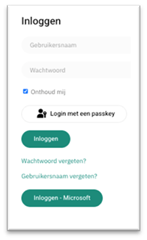
- Enter the email address you provided earlier (your username) and password.
- Click the [ Login ] button
or
Click the [ Login – Microsoft ] button if your municipality email address is already used as your username for cloud applications like Nachtregister Online.
Nachtregister Online requires secure login. You must use multi-factor authentication (identity verification: proving you are who you claim to be). This means that in addition to your username and password, you will need to provide a third piece of login information. On your first login, Nachtregister Online will ask you to choose the authentication method you want to use going forward (see image).
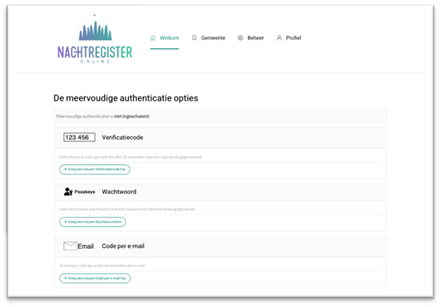
Set up your preferred multi-factor authentication method using the instructions below.
Setting Up Multi-Factor Authentication
Verification Code
This is a 6-digit code that you must enter after entering your username and password. To use this, you need an authenticator app on your mobile phone. Common authenticator apps include:
- Microsoft Authenticator
- Google Authenticator
If you already have an authenticator app, you can add Nachtregister Online to it. If you do not yet have an authenticator app and want to use one on your mobile device, you can download it from the Google Play store for Android or the Apple App Store for iPhone.
- Under the heading Verification Code, click [ + Add a new Verification Code ].
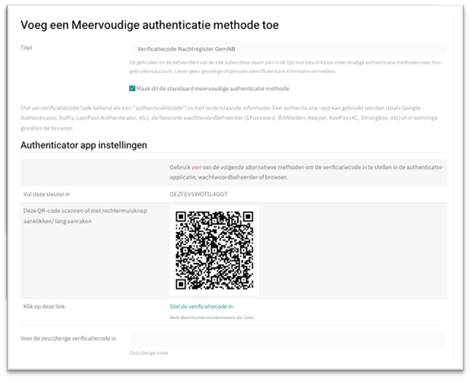
- Choose the method you want to use to add Nachtregister Online to your app. There are 3 ways:
- Use the QR code:
- Open the authenticator app on your phone.
- Select add by scanning a QR code.
- Scan the QR code in the Nachtregister window.
- The app now shows your username and a verification code. Enter this 6-digit verification code into the Nachtregister field labeled Enter the six-digit verification code.
- Use the manual key:
- Open the authenticator app on your phone.
- Select manual addition of Nachtregister Online.
- Copy the 16-character key from the Nachtregister window into the designated field in the app.
- The app now shows your username and a verification code. Enter this 6-digit verification code into the Nachtregister field labeled Enter the six-digit verification code.
- Use the link at the bottom of the Nachtregister window [ Click this link ]. This does not work in all browsers. Methods a. and b. are preferred.
- Use the QR code:
Each subsequent login will require a verification code. This is a new code each time. You must open your authenticator app and enter the 6-digit code in the field Enter the six-digit verification code.
Email Code
Similar to the Verification Code, the Email Code option requires you to enter a 6-digit code received via email after entering your username and password. The code is sent to the email address used as your username.
- Under Email Code, click [ + Add a new Email Code ].
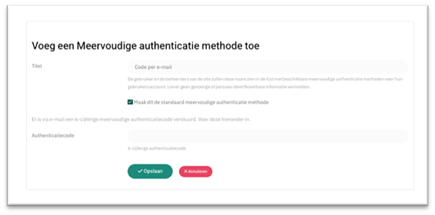
- Optionally enter a short description in the Title field.
- You will receive an email with a 6-digit authentication code.
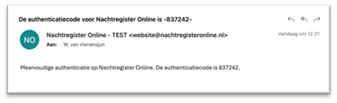
- Enter the code in the Nachtregister field labeled Authentication code.
- Click the [ Save ] button.
Each subsequent login will require an authentication code. You will receive a new code by email each time, which you must enter in the Authentication code field.
Troubleshooting: Backup Codes
After enabling your chosen multi-factor authentication option, the following page will appear. At the top, you will see Backup Codes. If your laptop stops working or your authenticator app is unavailable, you can use a backup code. You initially receive 10 codes. Each backup code can be used once.
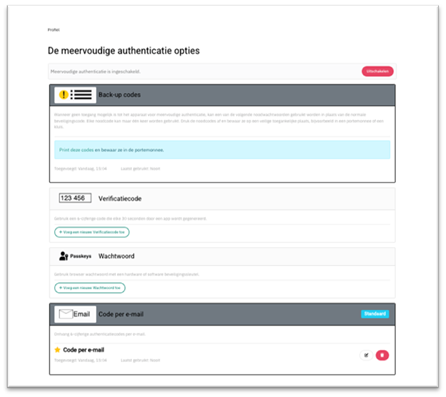
- Click [ Print these codes ] in the light blue bar.
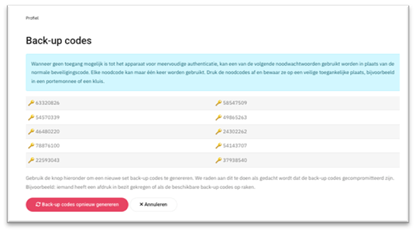
- Print the codes and store them securely.
NOTE: If you need a backup code but have lost the printed codes, you must notify your municipal administrator in Nachtregister Online. They must request support from Nachtregister Online.
Microsoft
Logging in via the Microsoft button requires a work account.
Setting up an authenticator for the work account is managed by Microsoft or your employer.
NachtRegister Online has no influence on the settings or requirements your employer imposes for using your account on our website.
General instructions can be found on the Microsoft website.